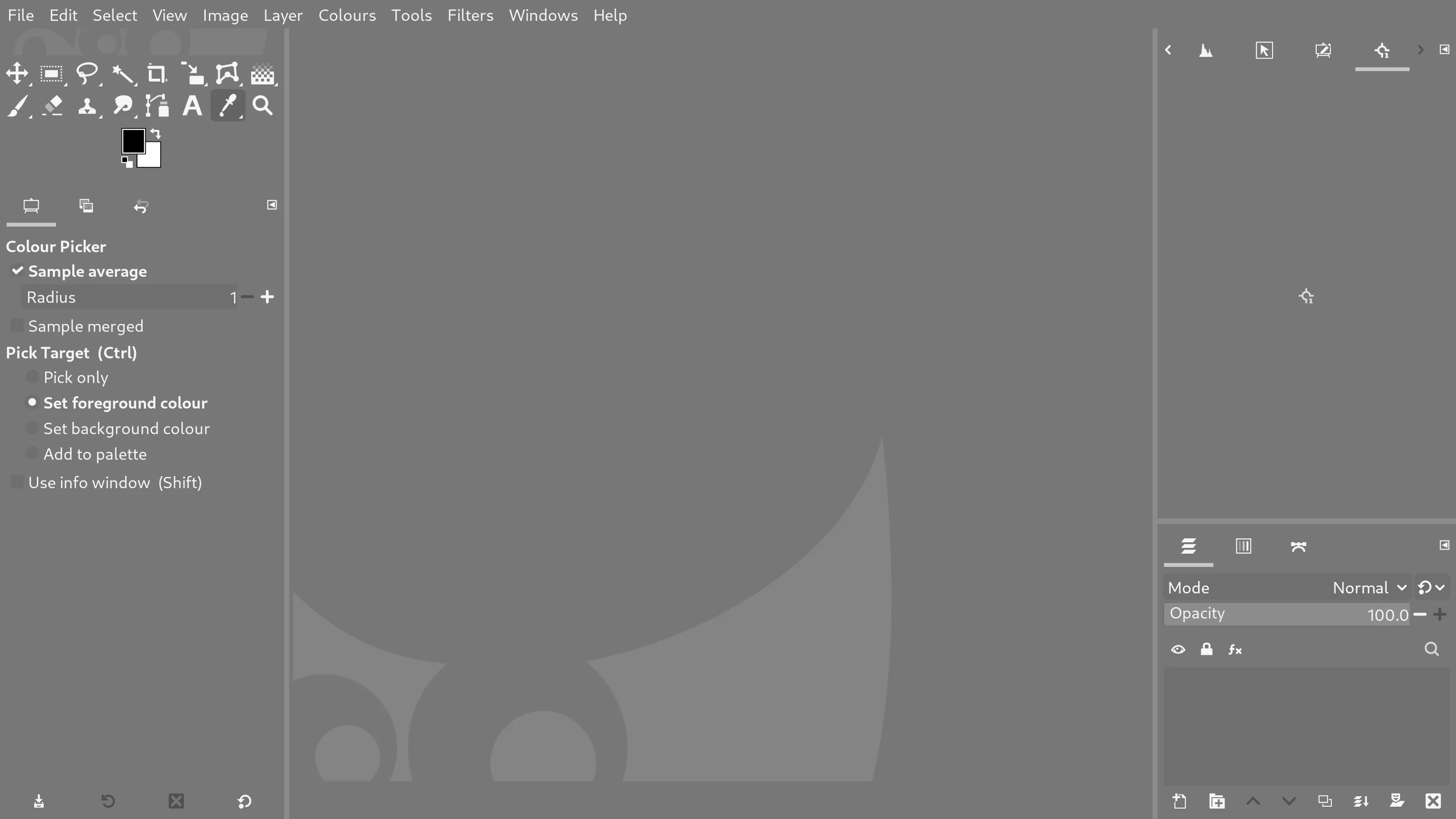
I wanted a theme for GIMP 3 which was suited to my work photographing artwork, colour-matching and printmaking.


Primarily, it had to be unobtrusive and undemanding, allowing me to concentrate on working on images all day, and without skewing my perception of their colour and tone.


It also had to be something that inspired confidence in visiting clients, when they review my work on screen.


Printroom


This neutral grey theme is designed to be especially legible at lower display brightnesses of 90 to 100 cd/m² - ideal for working with print.

Tonally, it has a lot in common with the grey default theme in GIMP, but with light text and icons, and with darker widget backgrounds.

Colour values are equal RGB, allowing for unbiased perception of colour in the image. The average of the interface as a whole corresponds to CIELAB Middle Grey.

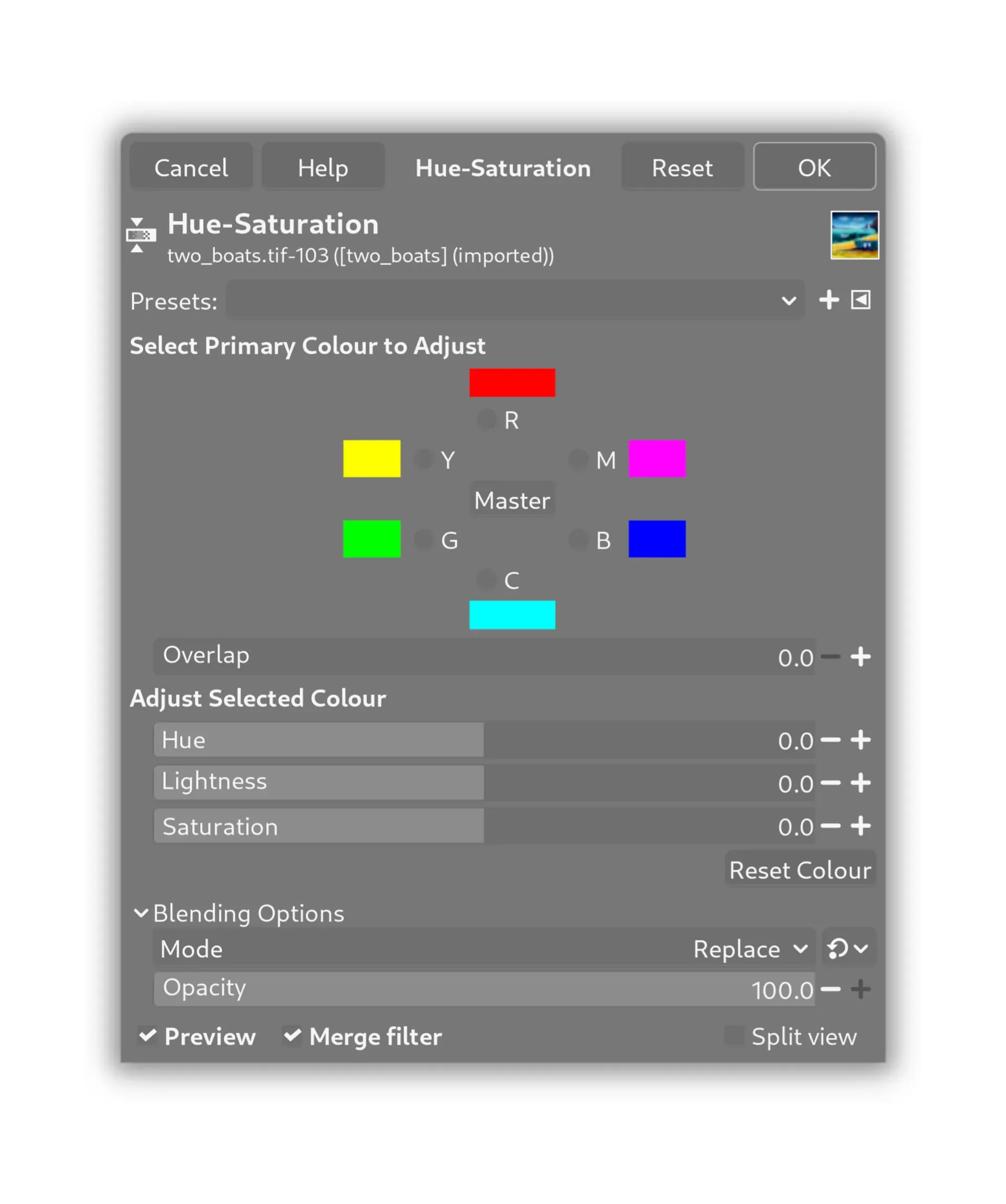
The Hue-Saturation dialog in GIMP

Expert


Visual feedback from the interface is eased and in places removed altogether, to help maintain focus and neutral perception of the image.

There are no high-contrast changes in tone when you hover over a button, for example.

The theme likes to think that you already know and trust how GIMP behaves.

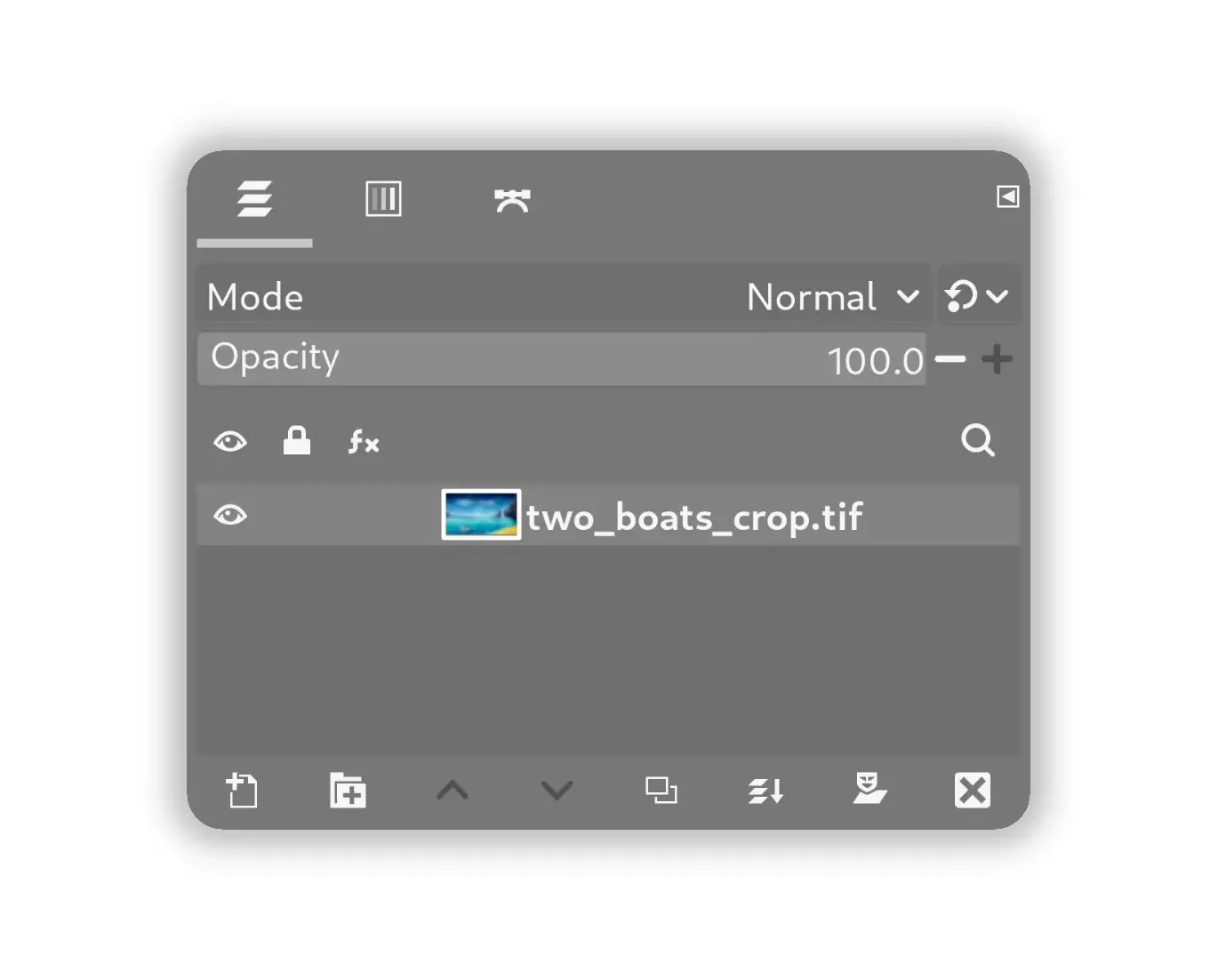
The Layers dialog in GIMP

Superflat


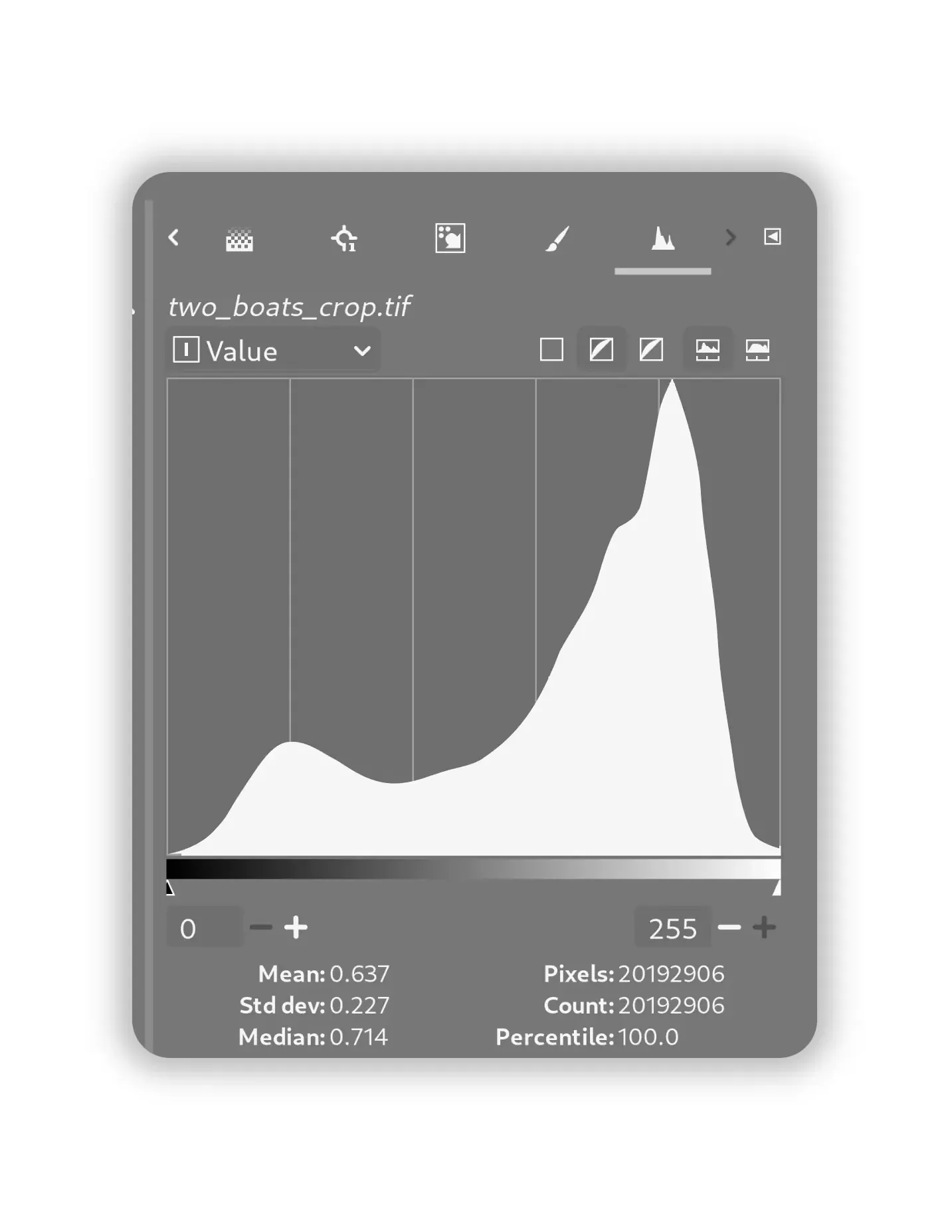
Most of the smaller graphical details from the default GIMP theme are removed, like borders and shadows on buttons and tabs. This helps to maintain focus on the image and the information contained within the controls themselves.

It reduces clutter in the working environment and reduces strain on the eyes.

Beyond this, a modern and confident presentation helps to communicate professionalism when in the presence of paying clients.

The Hhistogram in GIMP

Download


Download the .zip file, then extract it, and place the PrintroomExpertSuperflat folder wherever GIMP looks for themes on your system.

If you're unsure where that is, go to Edit > Preferences > Folders > Themes in GIMP.
Flatpak users please read below.

Flatpak

When installed via Flatpak, GIMP folders can be hard to find. I recommend using GIMP's option to add your own folder for downloaded themes:

- Create a new folder e.g ‘my-gimp-themes’ anywhere on your computer where you're unlikely to accidentally delete or move it in future, and then place the unzipped PrintroomExpertSuperflat folder inside it.
- Then, in GIMP, go to Edit > Preferences > Folders > Themes, click the ‘Add a new folder’ button on the left and then the ‘Open a file selector…’ button on the right and select the my-gimp-themes folder you just created.
- Click the OK button.
- Restart GIMP.
- Go to Edit > Preferences > Interface > Theme and select PrintroomExpertSuperflat
All further downloaded themes can be placed in the my-gimp-themes folder too, and will become available in GIMP when you restart it.

Read more in the GIMP Manual

Tip

If you're able to make a donation to support my work, please consider doing so here.
It really helps.

Updates

If you'd like to know when there are updates to this theme, either send me an email to let me know, or follow my account on Mastodon where I'll post about updates:

Feedback:
This is Version 2 of the PrintroomExpertSuperflat theme. If you'd like to collaborate on developing it or have improvements you'd like me to add just get in touch. There are some minor leaks from the users system theme which I haven't worked out how to override yet, and I'm particularly keen to hear from anyone who might be able to solve these.
Comments are also welcome - again, feel free to let me know if you if you have any requests or suggestions.